Download data using the OSDF
Abstract
In this guide, you'll learn
- how to download an object using the OSDF
- how to authenticate your access
The exercises in this guide assume that you have installed the Pelican CLI client on your device. If you have not, see the Set up Pelican guide for instructions.
What's your namespace?
For the exercises below, you need to have "read" access to an OSDF namespace connected to CILogon. Whoever directed you to this guide should have provided the necessary information.
If you were not directed to this guide, then the exercises almost certainly will not work. You're welcome to read on, though!
Command syntax
To download data, use the pelican object get command.
The syntax is
pelican object get <osdf_path> <local_object>
where <osdf_path> is the OSDF address to the object that you want to download and
where <local_object> is the name or path to a file on your device.
There are two scenarios that can occur when you run a pelican object get command:
- If the object is public, then the download should proceed immediately!
- If the object is private, then you will need to authenticate the download.
For an example of downloading a public file, see the Set up Pelican guide.
Don't forget the local destination
If you forget to include the local destination at the end of the command, you'll get an error. For example:
$ pelican object get osdf:///pelicanplatform/test/hello-world.txt
ERROR[2025-10-06T14:15:35-05:00] No Source or Destination
Try 'pelican object get --help' for more information.
To fix this, append ./ (or some other local path) to the end of the command.
Setup test download
First, you need to identify the OSDF address for an object in your private OSDF namespace to download.
- We recommend that owners of a private OSDF namespace provide such an address to their users.
- If you are the owner of the private OSDF namespace, then you should be able to follow the instructions in the Upload data guide to create a test object at an address of your choosing.
Typically the OSDF address for testing downloads is in the form of osdf:///YOUR_NAMESPACE/test/some_object_name.
Finding an object to download
If you don't know the address of an object to download, you can try finding one using the pelican object ls command:
pelican object ls osdf:///YOUR_NAMESPACE
Running this command should list the available objects or addresses available under your namespace.
Then choose an object to download, or use additional pelican object ls commands to look deeper into the namespace.
You may need to authenticate the listing command. Follow the instructions below on how to authenticate.
Test download
Once you've identified the OSDF address for an object to test the download, run the command
pelican object get osdf:///YOUR_NAMESPACE/test/some_object_name ./
where, of course, you should substitute the OSDF address for the object you are actually downloading.
Error for bad namespace
If you forget to change the command before running it, you'll get an error like this:
ERROR[2025-10-06T14:22:58-05:00] error while querying the director at https://osdf-director.osg-htc.org: 404: No sources found for the requested path: no origins found for the requested namespace '/YOUR_NAMESPACE/test/some_object_name': Request ID: a57727b2-a344-4de6-8028-dd1e6186e5de
ERROR[2025-10-06T14:22:58-05:00] Failure getting osdf:///YOUR_NAMESPACE/test/some_object_name: failed to get namespace information for remote URL osdf:///YOUR_NAMESPACE/test/some_object_name: error while querying the director at https://osdf-director.osg-htc.org: 404: No sources found for the requested path: no origins found for the requested namespace '/YOUR_NAMESPACE/test/some_object_name': Request ID: a57727b2-a344-4de6-8028-dd1e6186e5de
Authenticate download
The first time you run a pelican command that requires authentication, you will see this message:
The client is able to save the authorization in a local file.
This prevents the need to reinitialize the authorization for each transfer.
You will be asked for this password whenever a new session is started.
Please provide a new password to encrypt the local OSDF client configuration file:
Choose a password that you feel is secure and easy to remember. The password is used only to unlock the configuration file on your device and will not be transmitted.
Once you've entered your desired password, you'll see something like this:
To approve credentials for this operation, please navigate to the following URL and approve the request:

https://<issuer_URL_for_your_namespace>/scitokens-server/device?user_code=<some_unique_code>
Open the URL in any web browser, even one that is not connected to the device that you are using. You'll be directed to a CILogon webpage and prompted to login.
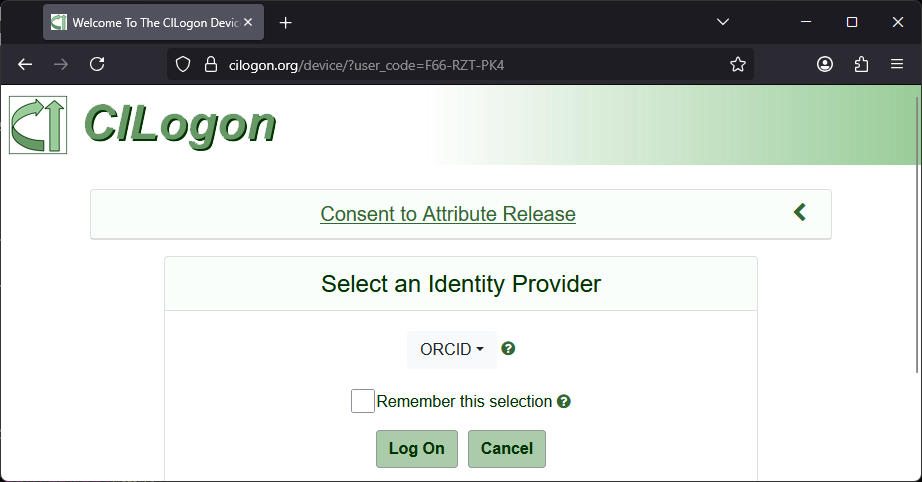
Make sure to select the appropriate identity provider for accessing your namespace. Typically, this is the same identity provider you used when you registered in COManage.
Click the "Log On" button.
Tip
We recommend that you do not click the "Remember this selection" box until after you've done several successful authentications. It can be tricky to "undo" this box, so it is best to make sure everything is working first!
You'll be re-directed to login with the selected identity provider. For some institutions, the identity provider may recognize your browser session and automatically log you in.
Once you've successfully logged in to your identity provider, you will be redirected to a page like this:
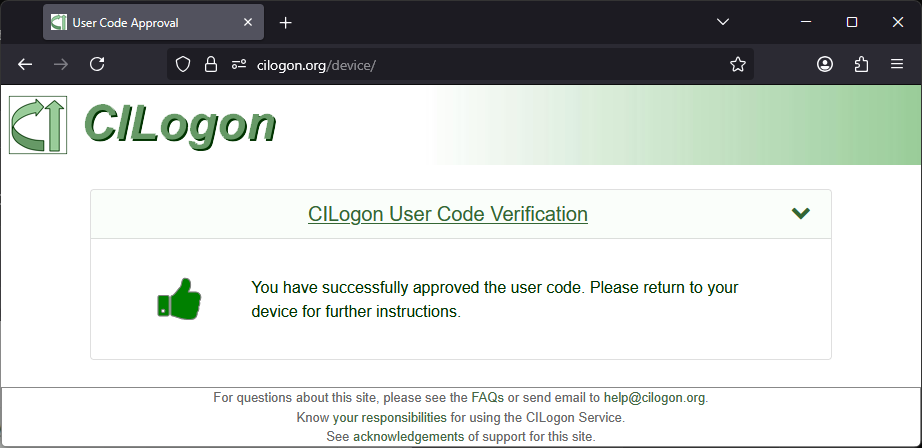
Now, return to your terminal. You will be asked for the password to your local configuration file. Enter the same password you used earlier.
The OSDF client configuration is encrypted. Enter your password for the local OSDF client configuration file:
What if I use the wrong password?
If you enter the wrong password for your local client configuration file, you'll get an error like
Failed to get reset password: pkcs8: incorrect password and the pelican command will fail.
Rerun the last pelican command again to retry.
- If you want to change the current password, run the command
pelican credentials reset-password. - If you don't remember your password and need to reset it, email support@osg-htc.org to request instructions.
Once you've reached this point, the data transfer itself will be pretty quick if you are using the example file above. For larger files, you may see a progress bar.
If no errors are reported, then the download command was successful.
In case of errors
If there is an error message, the message should explain what the problem is. Most common is that you (or more accurately, the identity you authenticated with) do not have the permission to download objects from that namespace.
- Double check that the OSDF address you are using is correct
- Confirm that you are using the correct identity for the download
If you are still having issues, email support@osg-htc.org.
Confirm download
Once the download command has finished, the object should be available at the location you provided. You should verify that the contents of the object on your local device matches what you expect to find.
Future downloads
The credential that Pelican generated on the first download will be kept in your local client configuration. These credentials typically have a lifetime of about 15 minutes, though your namespace may be configured differently.
If you try to get another object from your namespace while you have an active credential,
you will not need to repeat the CILogon authentication.
You may or may not be required to enter the password for your local client configuration,
depending on how your device is set up.
If the local credential has expired, then you will have to repeat the CILogon authentication the next time you try to get.
Caching
When you download an object via the OSDF, it is first downloaded to a "cache" before transferring to your computer. A copy remains on the cache so that the next time you (or someone else) downloads the object, the cache can provide it instead of the origin.
This setup is useful when the data needs to be downloaded repeatedly. Instead of repeatedly downloading data from the original data storage, clients can download the data from the caches.
For more information about caching in the OSDF and its implications, see this section in the Concepts guide.